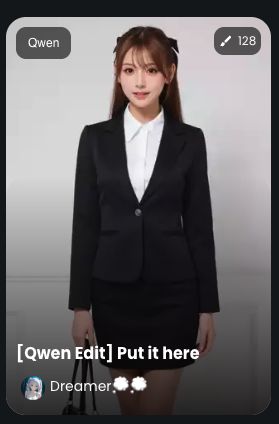
> For the complete documentation index, see [llms.txt](https://docs.dreamerland.ai/llms.txt). Markdown versions of documentation pages are available by appending `.md` to page URLs; this page is available as [Markdown](https://docs.dreamerland.ai/image/qwen-image-edit/blending-elements.md).
# Blending elements
Another usage is to use Lora to blend different elements.
For better consistency, you can use "Put it here" Lora to do this.
### How it works
1. Upload a base image and click the edit button on the bottom left
2. Click the "Add Image" button to add elements on top of the base image. Position the elements where you want them to be applied. For example, we want to change her clothes to a bikini, so we place the bikini image on her body.
3. Select "Put it here" style and write a instruction prompt.
Tips of writing prompt:
1. You should tell the AI what to do. In this example,
we want to remove the white area of the bikini image
we want to remove her clothes
we want to replace her clothes to this flag bikini\
so the prompt is "remove white area, remove her clothes, change her clothes to flag bikini"
2. Describe the final output. In this example, The final output is a girl wearing bikini
3. The "Put it here" style is to maintain consistency in image editing, although it is optional.
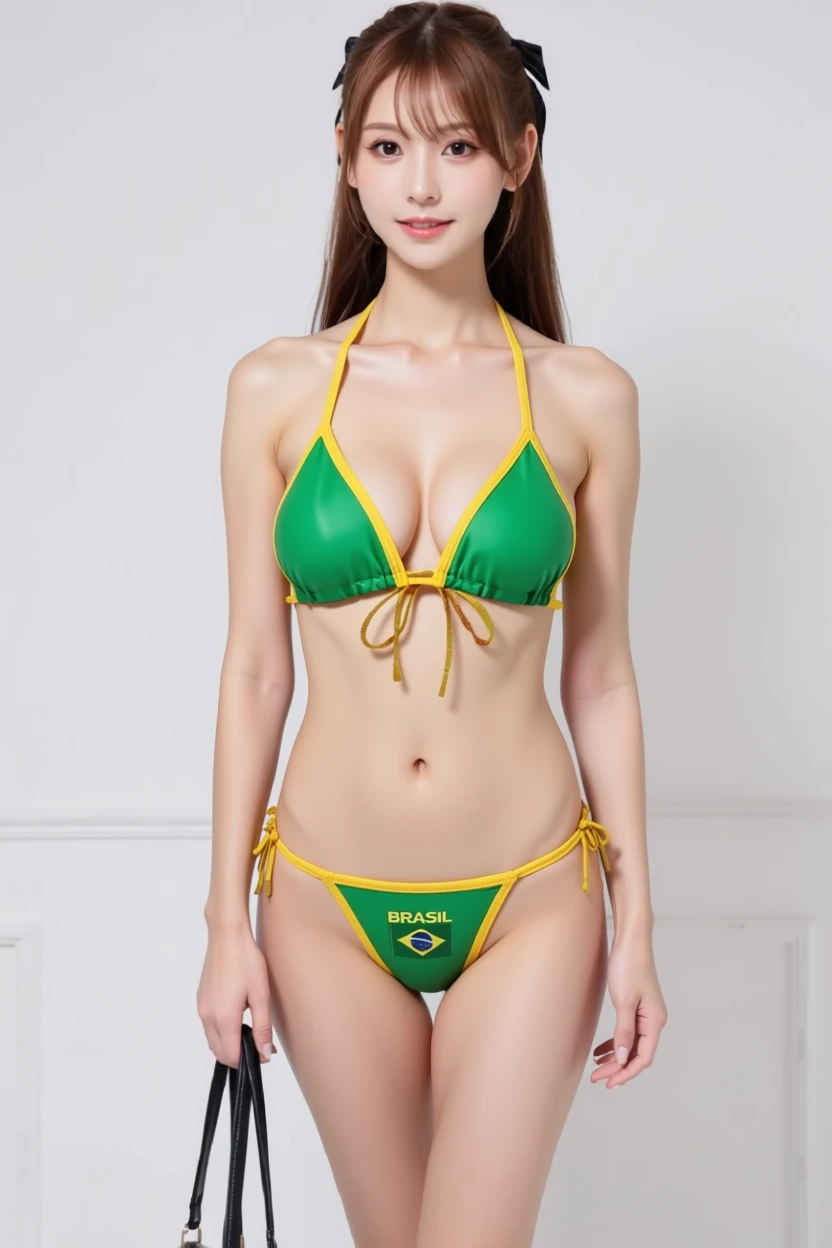
4. That's it. Hit the Draw button and wait for the output. Below is the final output and it looks perfect. Details of the bikini and person remain consistent.
Here are output of with and without "Put it here" Lora. You can see the difference in consistency of the bikini.