> For the complete documentation index, see [llms.txt](https://docs.dreamerland.ai/llms.txt). Markdown versions of documentation pages are available by appending `.md` to page URLs; this page is available as [Markdown](https://docs.dreamerland.ai/image/qwen-image-edit/generative-fill.md).

# Generative fill

You can inpaint and outpaint with Generative fill lora. It will fill the missing part of the image.

### Inpaint

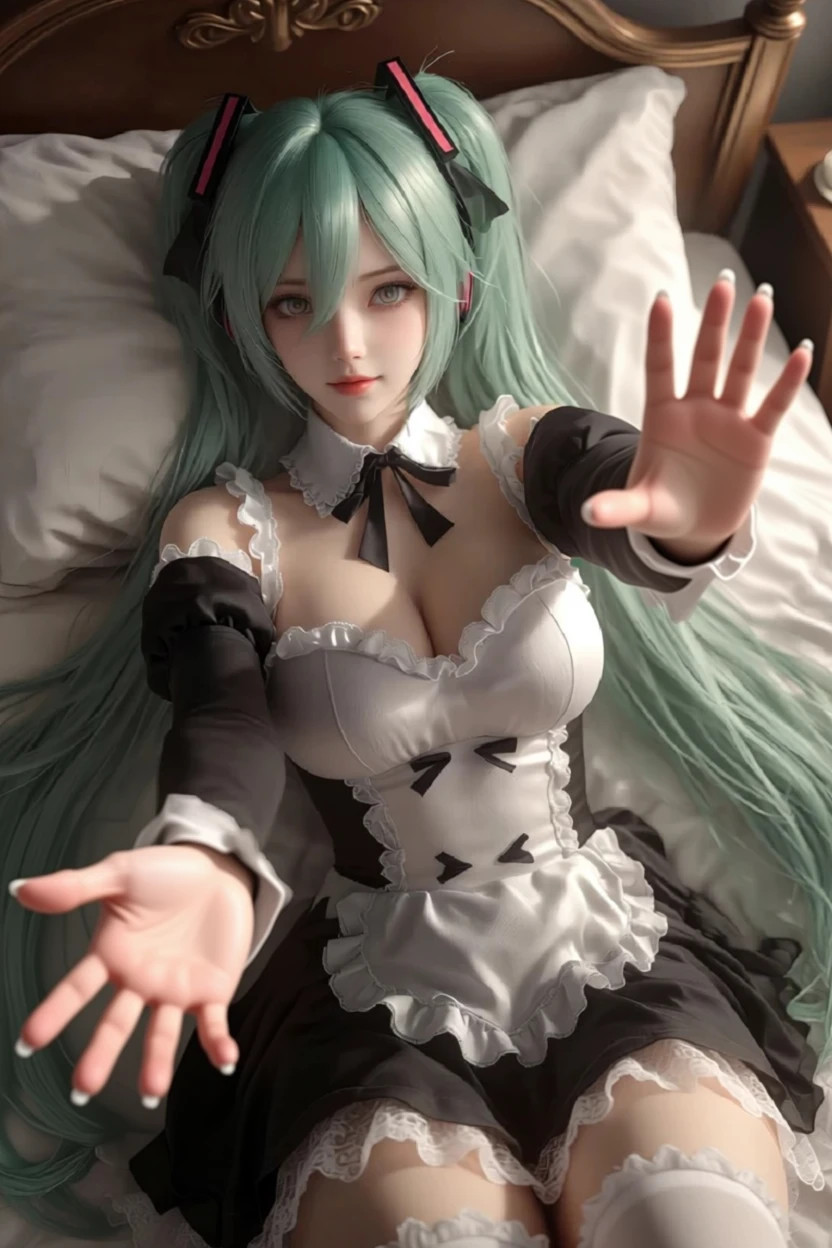
1. Upload a image and draw black color on area you want to inpaint. For example, we want to fix the hands of this image

<div><figure><img src="https://2310956826-files.gitbook.io/~/files/v0/b/gitbook-x-prod.appspot.com/o/spaces%2Ftbrc6W2n35oVxftMovDQ%2Fuploads%2FK5AkWAmqencfbbRLcSty%2Fdl_1756767828011.jpg?alt=media&amp;token=d22094da-25dc-462d-a1e7-07337a64a334" alt="" width="375"><figcaption></figcaption></figure> <figure><img src="https://2310956826-files.gitbook.io/~/files/v0/b/gitbook-x-prod.appspot.com/o/spaces%2Ftbrc6W2n35oVxftMovDQ%2Fuploads%2FmASj64sKmlxNBznBVVV1%2FScreenshot_20250903_030857~2.jpg?alt=media&amp;token=1a3374c0-52b9-4aa7-a8d5-c7b68df87810" alt="" width="375"><figcaption><p>Click the edit image</p></figcaption></figure> <figure><img src="https://2310956826-files.gitbook.io/~/files/v0/b/gitbook-x-prod.appspot.com/o/spaces%2Ftbrc6W2n35oVxftMovDQ%2Fuploads%2FbadMfynfBkHXwOQK5Q0V%2FScreenshot_20250903_030633.jpg?alt=media&amp;token=c9fd8960-cf2c-465c-bd4e-ee78cbafce0e" alt="" width="375"><figcaption><p>Draw on the image</p></figcaption></figure></div>

2. Select the generative fill style and write the prompt to describe your desired output.&#x20;
3. &#x20;Click Draw and That's it.&#x20;

Result:

<figure><img src="https://2310956826-files.gitbook.io/~/files/v0/b/gitbook-x-prod.appspot.com/o/spaces%2Ftbrc6W2n35oVxftMovDQ%2Fuploads%2F94jyP0eWefblYygRP2v5%2Fdl_1756841037283.jpg?alt=media&amp;token=27a04d1c-979d-4674-938a-913a9977cef9" alt="" width="375"><figcaption></figcaption></figure>

### Outpaint

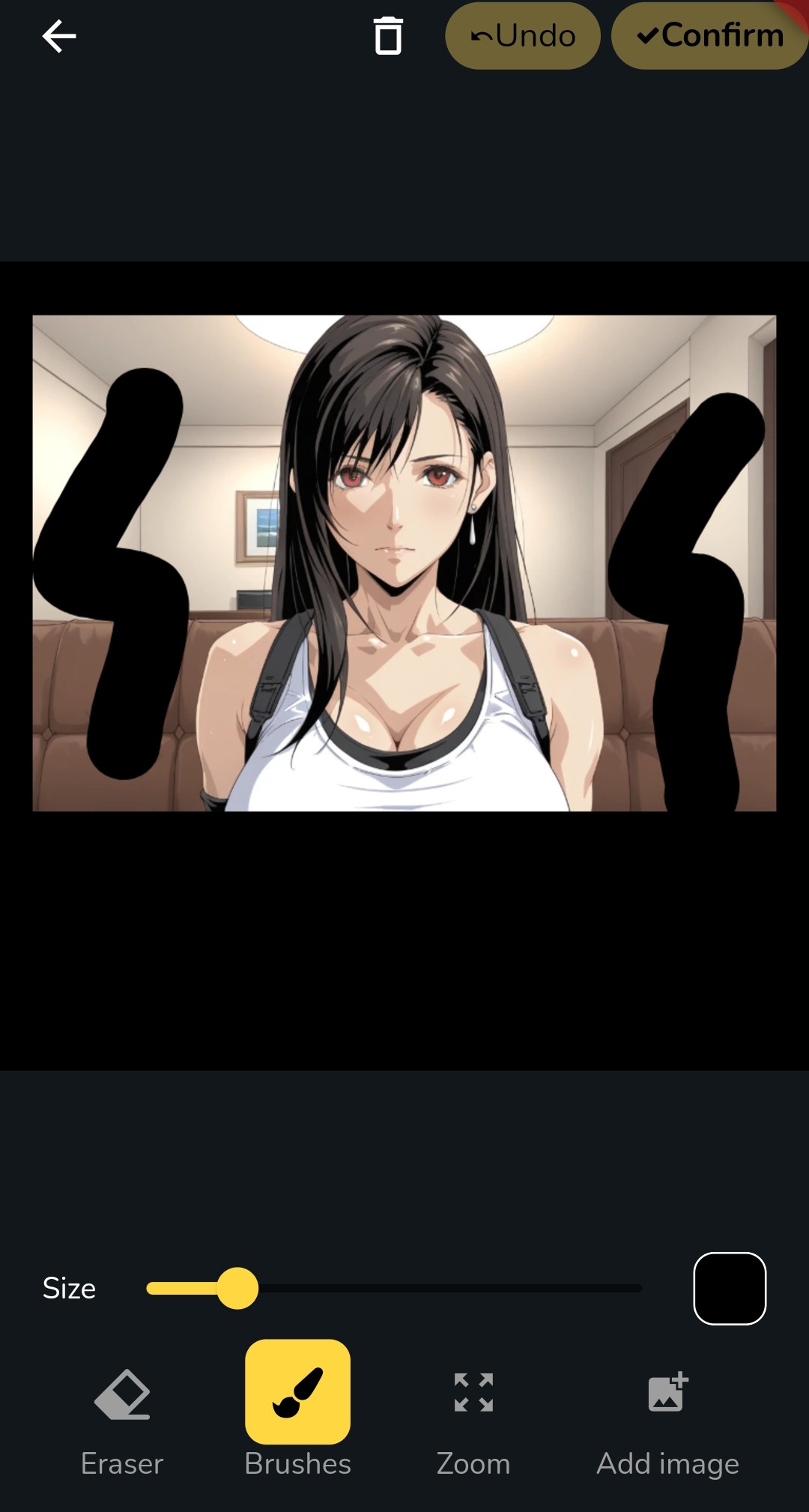
1. Upload a black image or upload a random image and draw it to all black. Add image to the canvas

<figure><img src="https://2310956826-files.gitbook.io/~/files/v0/b/gitbook-x-prod.appspot.com/o/spaces%2Ftbrc6W2n35oVxftMovDQ%2Fuploads%2FPsTH2KSwvkhiIWX9vi5z%2FScreenshot_20250903_030045.jpg?alt=media&amp;token=87b49e51-b4f6-47af-a2e1-1bacc75543bc" alt="" width="375"><figcaption></figcaption></figure>

2. Select the generative fill style and write the prompt to describe your desired output.
3. Click Draw and That's it.

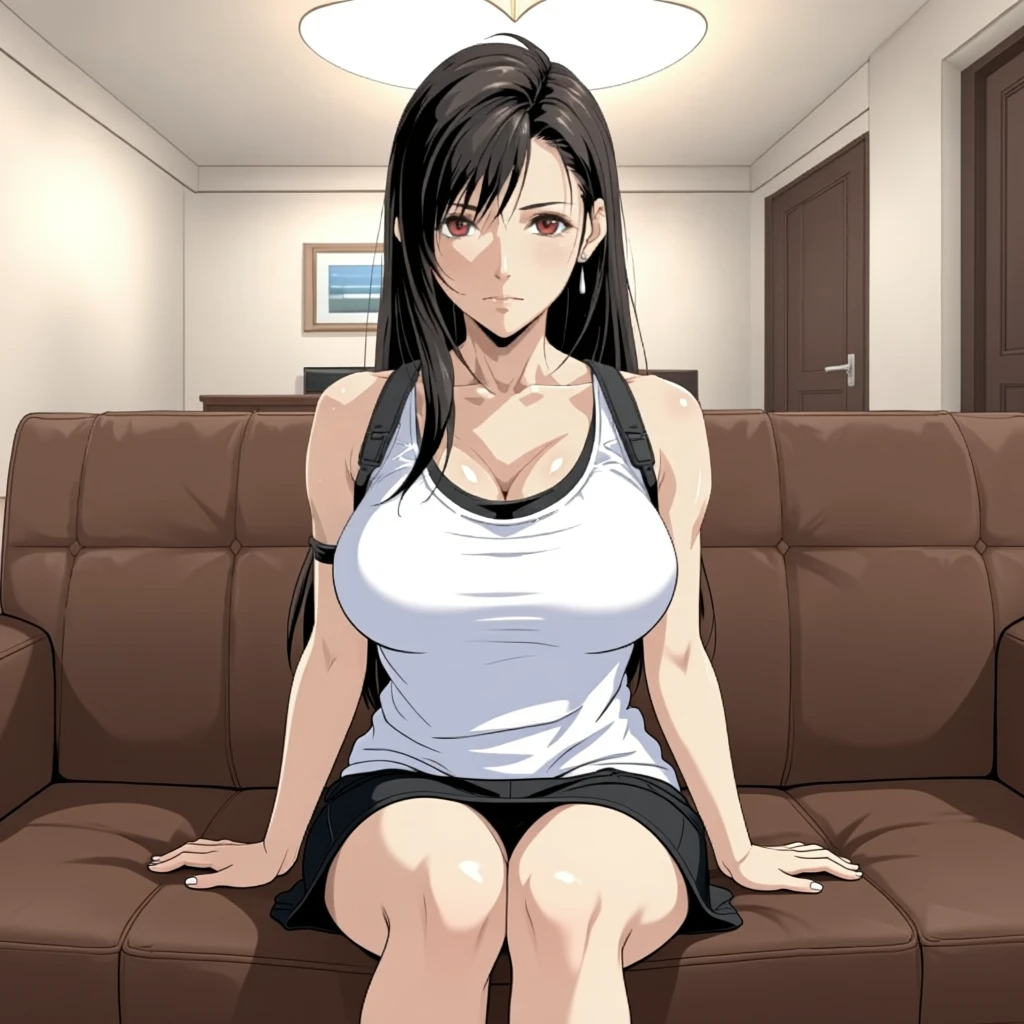
Result:

<figure><img src="https://2310956826-files.gitbook.io/~/files/v0/b/gitbook-x-prod.appspot.com/o/spaces%2Ftbrc6W2n35oVxftMovDQ%2Fuploads%2Fg2niFBKATwjkbAO79f6p%2Feb7oHpXozcqHQyoLcyHb_0.png?alt=media&amp;token=5895be76-2390-4b6f-924f-a7f05b0f031f" alt="" width="375"><figcaption></figcaption></figure>